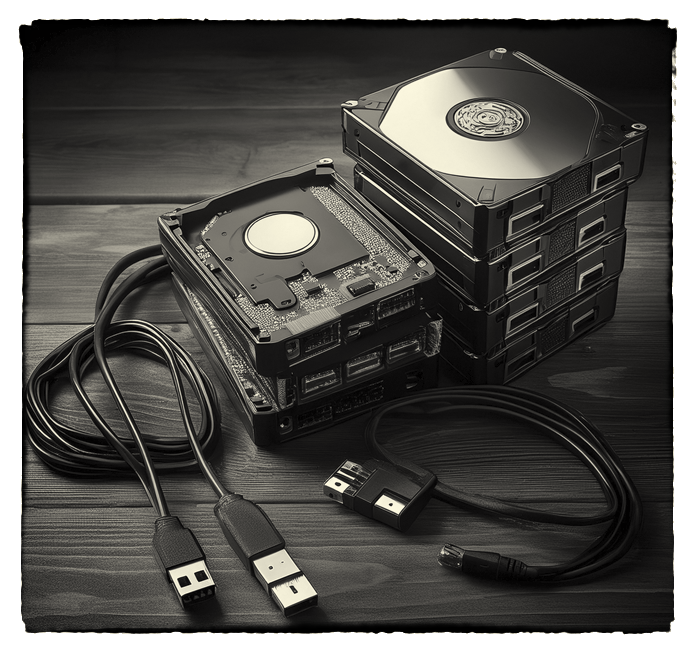
Fifty years of work does not live in one folder.
MediaVault is a Mac app that catalogs a lifetime of creative work — photographs, audio, video, writing — across every drive you own, including the ones that aren’t plugged in right now.
For Mac. Your original files are never moved, copied, or renamed.
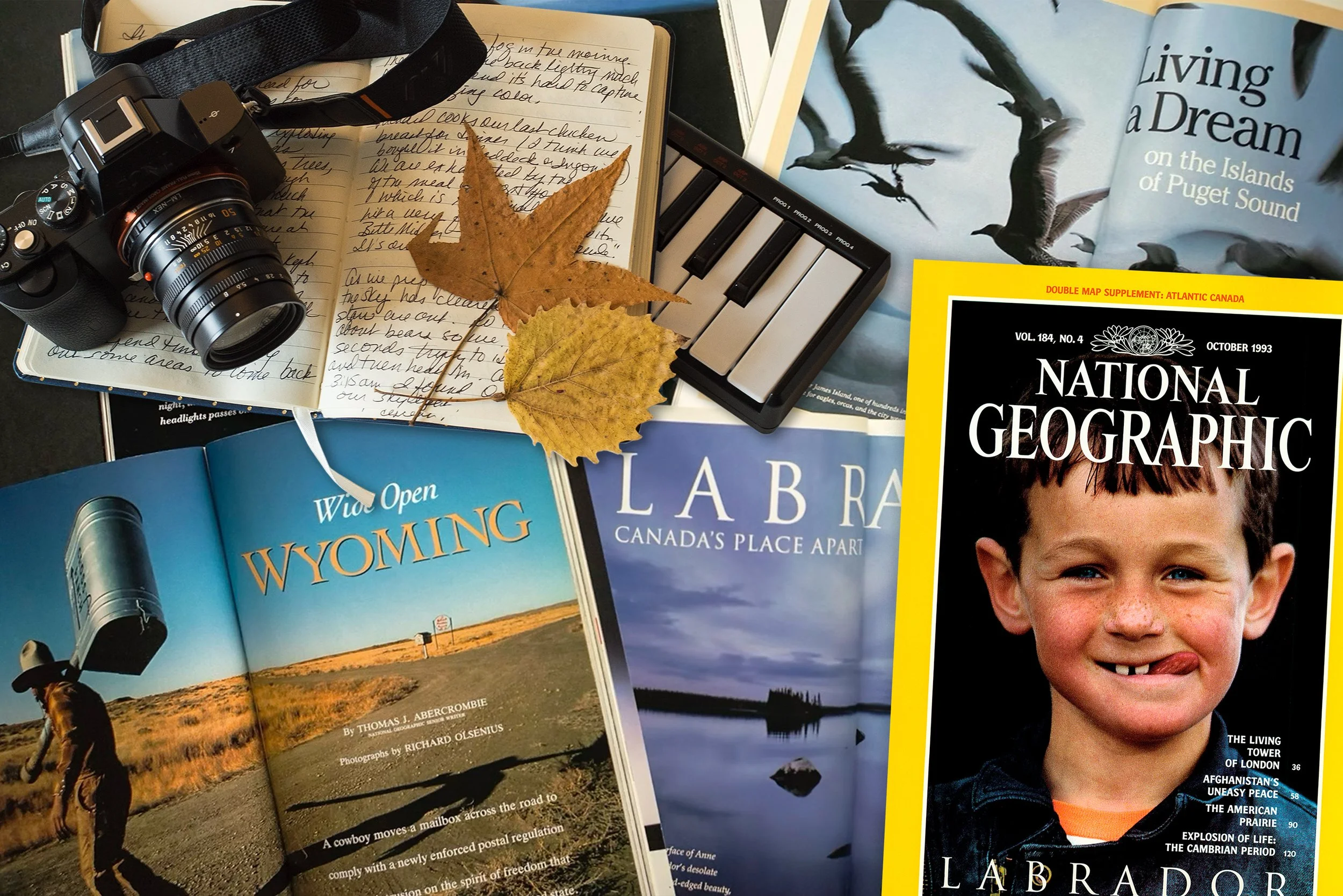
Assignments, notebooks, and spreads from fifty years of work — the kind of archive MediaVault was built to hold.
What it’s for
Most cataloging tools are built around one medium
They are excellent at photographs, or at audio, or at video — and useless the moment a single project is all three at once. A film has a score. A book has a shoot behind it. An assignment has notebooks, contact sheets, and a folder of scans made twenty years later.
MediaVault starts from the opposite assumption: that a working life produces cross-format projects scattered over decades and dozens of drives, and that the job isn’t storing them — it’s finding them again.
MediaVault was built collaboratively, piece by piece, as a working tool rather than a commercial product. It was created by National Geographic photographer and photo editor Richard Olsenius specifically to solve the organizational challenges of a creator whose career spans fifty years across multiple disciplines — beginning with newspaper photojournalism and National Geographic assignments and editing, and expanding into video, music composition, and book publishing. Because audio, video, writing, and photography often collapse into single, cross-format projects, Olsenius found that standard file folders were no longer sufficient for finding decades-old work. MediaVault was designed to fill this gap as a private card index for a lifetime of creative files.
Four-Level Organization
The archive relies on a clear hierarchy: Category (the discipline or shelf, like Music or Film), Theme (an optional drawer grouping related work), Project (one body of work), and Sub-folder (the working structure inside the project).
The Library and Categories
Instead of a spreadsheet, the app opens to a warm, illustrated Library that acts as the front door. From here, users reach their discipline shelves — the Category — which divide work into Genesis (in-progress) and Established (finished) stages.
Instant Search and Teleportation
A gold spyglass on the Library splash page searches the entire archive at once. In the Full Database view, the Project column teleports: click a project name and land on that file’s exact location inside its sub-folder.
Hover Previews and Playback
Hover over a file’s location to see a graphic map of where it physically lives. Without leaving the app, preview documents and images or play audio and video directly. Audio playback includes a live spectrum analyzer for gauging the bass and treble of a track at a glance.
Clickable Location Tree
The location card shows a file’s full path — the volume, the folders, the file. Every level of that tree is clickable, opening that exact location in the Mac Finder.
Pull Lists for Physical Retrieval
Gather scattered files into a Pull List for a piece you’re planning. Because those files may live on drives that aren’t connected, the list prints as a paper sheet with tick-boxes — a shopping list for retrieving work from storage.
Legacy Finder Comments
On import, MediaVault preserves and pulls in Mac Finder comments as notes, so decades of margin-notes aren’t lost.
Automatic and Emergency Backups
Every launch checks the database for damage and saves a fresh automatic backup. A manual Backup Now button covers large sessions, and an emergency Restore from Backup lever is there in case of corruption.
Responsive Design
Built for large and small screens alike. Narrowing the window creates a sliding bar that freezes the filename in place while you scroll through the other metadata, much like a locked spreadsheet column.
Explore the App
The Library
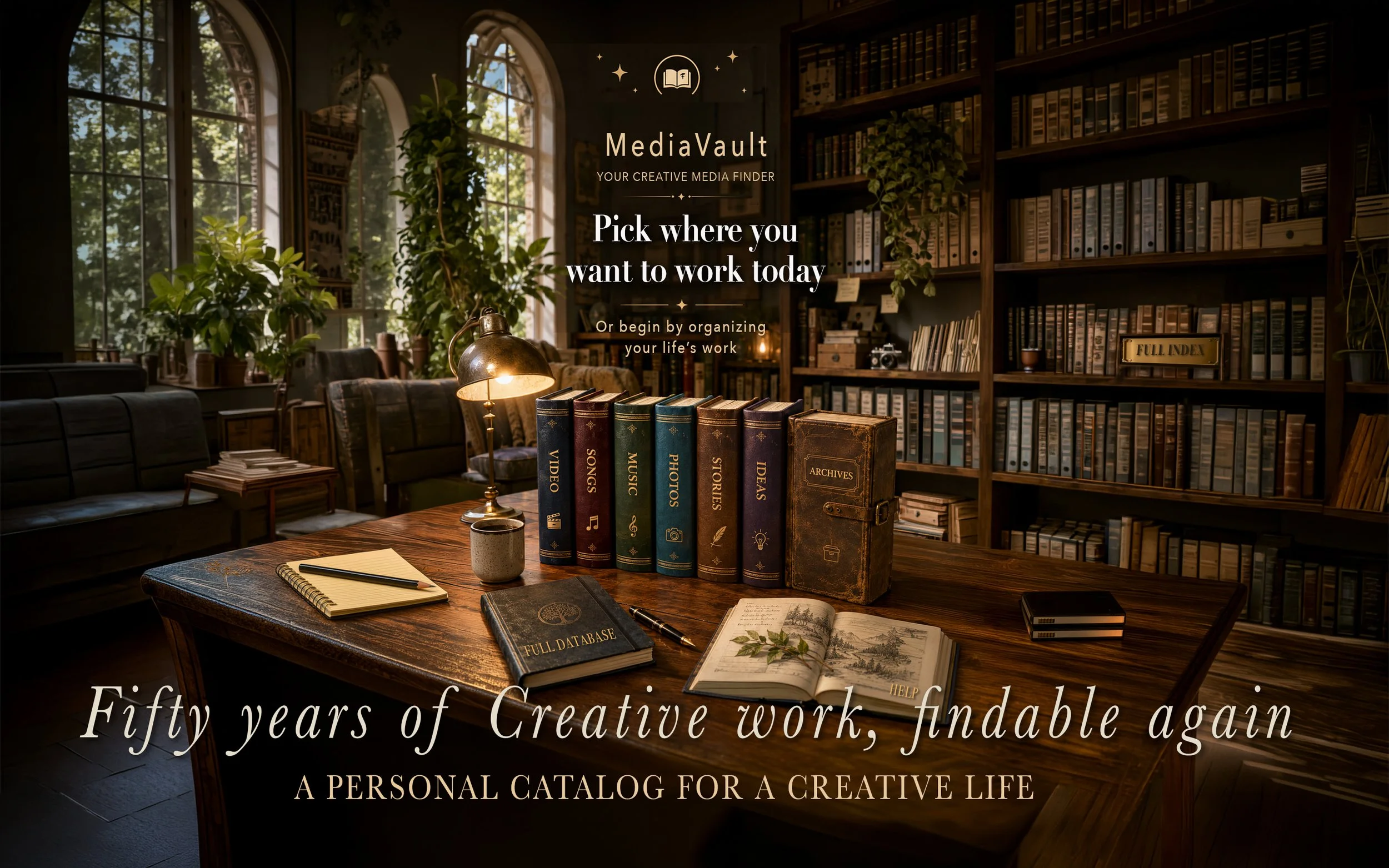
Hover a gold marker — or tap it on a phone — to see what each part of the room does.
The Discipline Books
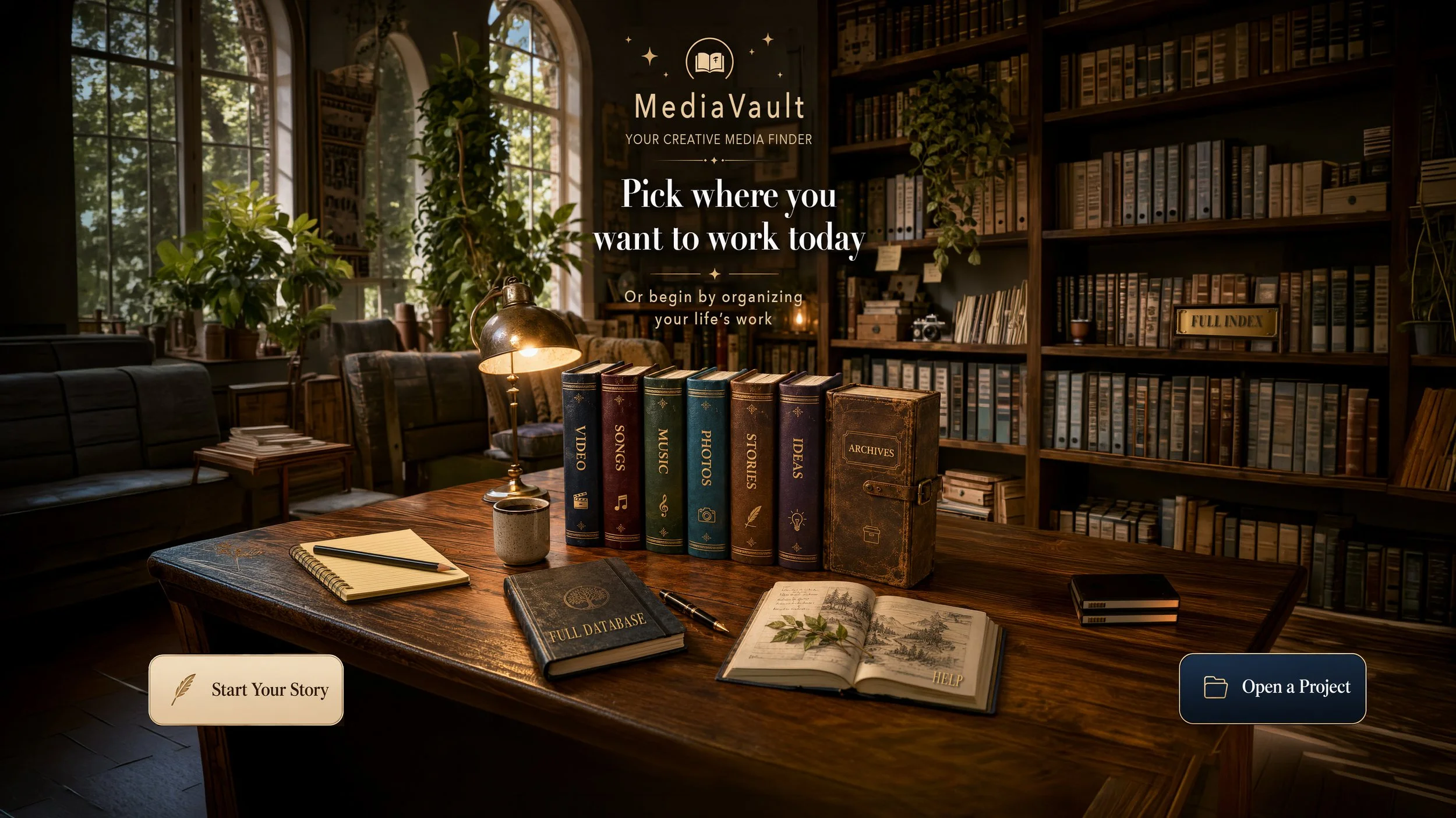
Each spine is a shelf of your work — Video, Songs, Music, Photos, Stories, Ideas. Click one and you land on that discipline's Journal, its working home page.
Archives
Finished work, shelved with honor. Established projects live here — out of the day-to-day view, never out of reach.
The Full Database
The desk book opens everything at once — every file from every project in one sortable table, with a Project column that teleports you to any file's exact home.
The Little Camera
Opens About the Author — the fifty-year story behind this app.
Full Index
The brass plaque on the shelf — another door to the complete catalog, kept where a card index would live.
The Help Book
The open journal holds the tips — every icon and shortcut explained, plus the button that opens Data & Storage and the full Field Guide.
The Yellow Notepad
Your To-Do list. Jot what's next — flag that song, re-file those scans — and it's waiting on the desk every time you return. Print it when a working day calls for paper.
The Drives
Data & Storage — where your library lives on this Mac, along with your automatic backups and Restore, and the Field Guide.
Start Your Story
Begin a new project — name it, pick its shelf and theme, and start filing. A project can be born with nothing but a name.
Open a Project
Pick up where you left off — your recent projects, ready to reopen with one click.
This same room is the app's front door — every marker here is a real, clickable object in MediaVault itself.
MediaVault · Field Guide
How a library gets built
Let's begin with the Video category folder and explore the order you might follow. Use the numbered buttons to move through the process — and in each panel, click the gold highlighted phrase to take the next step yourself.
(Only the Video folder is active in this walk-through.)
Every decision on this page can be undone, and none of them touch your hard drive. MediaVault never moves, copies, renames, or deletes your media — it writes down where things are and leaves them where they sit.
MediaVault — a catalog for a life's work
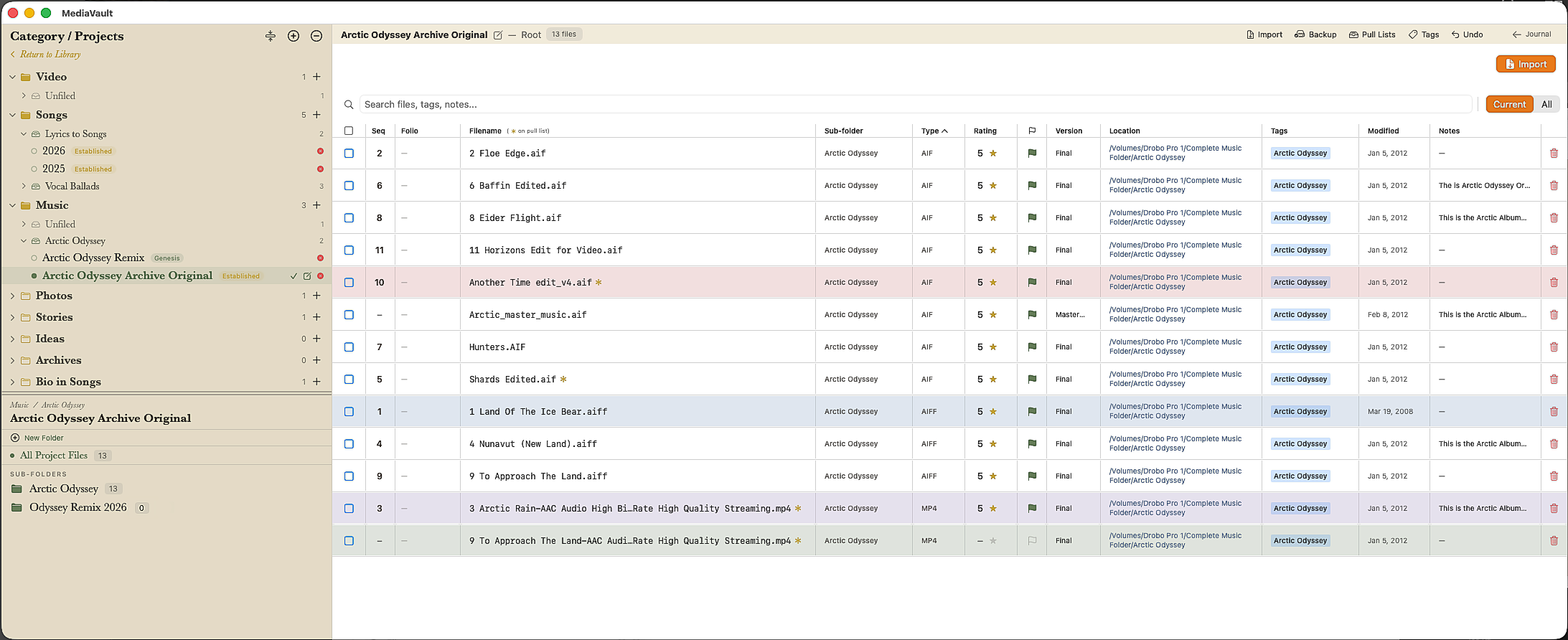
See Exactly Where Every File Lives
Click a gold marker for a closer look at what that part of the table actually shows.
Drag a red box on the image to reposition it — or pick it below and use the fields. When it's right, copy the code and paste it over the HOTSPOTS array.
This is the real, working table — every column here is live in the app, not a mockup.
Six Ways In
A closer look at what makes MediaVault different — click any card for the full story.
Listen to the discussion
A 23 minute, in-depth discussion about the value of organizing one’s creative work. No more hunting for media, text, or audio files hiding on multiple SSD drives. Listen to the all the features MediaVault delivers while you’re having lunch. Don’t spend your creative time wondering about your life’s work, but be proactive to get organized so you and others can sort through your life’s efforts. Listen to how this high-powered creative organizer created by National Geographic photographer and photo editor, Richard Olsenius, can save your work so you and future generations can see your work!
Read the Field Guide
The complete story of how MediaVault is organized — explore it here, no download required.
If the guide doesn't load above, use the direct download link below instead.
Prefer it on paper, where the pdf links are active? Download the PDF directly.